Cover


Welcome to Advent of Mojo 🔥
Welcome! We’re excited to explore Mojo with you. You may be discovering Mojo for the first time. You may be evaluating it for your next project. Either way, the fastest way to get to know a language is to use it.
Let’s write some Mojo together.
- Not by reading a language specification.
- Not by memorizing every feature.
- Not by studying type theory before writing code.
Instead, you’ll write real code, solve real problems, and learn Mojo by using it.
About you
If you’re looking at this page, we’re guessing you already know how to program.
You may come from Python, Swift, Rust, C++, JavaScript, Go, Java, or another language entirely. You already understand variables, loops, functions, and data structures. You don’t need another introduction to programming.
What you need is a working Mojo vocabulary.
What you’ll see
This workbook combines short explanations, runnable examples, experiments, and exercises that help you learn by doing.
You’ll see some sharp edges along the way. When something matters, we’ll call it out directly.
We won’t cover every language feature, and we won’t spend much time on Mojo’s design philosophy. Our goal is simpler: get Mojo under your fingertips.
Note
Advent of Mojo is a work in progress. Content, examples, and structure may change. If you’ve found a bug, have a suggestion, or want to flag something confusing, or any other reason, please open a thorough Documentation issue on the Modular GitHub.
Install Mojo 🔥
This workbook uses mdBook and the Mojo nightly build. Nightly gives you
access to the latest Mojo features used throughout the exercises, but it
also means you’ll need to keep your installation up to date as Mojo changes.
This chapter gets your development environment ready. You’ll check that your system supports Mojo, install the nightly build, add editor support, and verify that everything works. It also covers updating or removing Mojo when you need to.


System requirements
Ensure your system supports Mojo.
🍎 macOS
macOS requirements:
- macOS Sequoia (15) or later
- Apple silicon (M1 or later)
- 8 GiB minimum for Mojo development.
- Xcode or Xcode Command Line Tools 16 or later on macOS.
🐧 Linux
Linux requirements:
- glibc 2.34 or later. For example, Ubuntu 22.04 LTS or later.
- x86-64-v3 (Haswell-class or newer; CPUs from approximately 2013 onward) or ARM64 Neoverse N1 or newer (for example, AWS Graviton2 and later)
- 8 GiB RAM minimum for Mojo development
- A C compiler (such as cc, gcc, or clang), used as a linker.
🪟 Windows
Windows isn't officially supported. Try Mojo on Windows using WSL with Ubuntu 22.04 LTS.
Install
Pick an installer. Each one creates a project directory and virtual environment with Mojo.
Install with pixi (recommended)
Pixi handles package management and virtual environments with lock files and cross-language support.
# Install pixi
curl -fsSL https://pixi.sh/install.sh | sh

# Create project with Modular channels (Release)
pixi init advent-of-code \
  -c https://conda.modular.com/max/ -c conda-forge \
  && cd advent-of-code

# OR

# Create project with Modular channels (Nightly)
pixi init advent-of-code \
  -c https://conda.modular.com/max-nightly/ -c conda-forge \
  && cd advent-of-code

# Install Mojo
pixi add mojo

# Enter the pixi environment
pixi shell
Configure pixi to automatically use nightly Mojo builds:
echo 'default-channels = ["https://conda.modular.com/max-nightly",' \
     '"conda-forge"]' >> ~/.pixi/config.toml
Install with uv
# Install uv
curl -LsSf https://astral.sh/uv/install.sh | sh

# Create project and environment
uv init advent-of-code && cd advent-of-code
uv venv && source .venv/bin/activate

# Install Mojo
uv pip install mojo \
  --index https://whl.modular.com/nightly/simple/ \
  --prerelease allow
After installing:
Run source ~/.bashrc (or source ~/.zshrc on Mac).
This will refresh your paths.
Verify with mojo --version.
VS Code extension
Install the Mojo extension for syntax highlighting, code completion, and debugging. Also available on Open VSX. Verify the publisher is Modular.
Update Mojo
- pixi:
pixi update mojo - uv:
uv sync --upgrade-package mojo
Uninstall Mojo
- pixi:
pixi remove mojo && exit - uv:
uv pip uninstall mojo && uv sync && deactivate
Mojo basics 🔥
Advent of Code is an annual series of programming puzzles released every December. Many puzzles share a common format: grab some data, loop over it, evaluate a pattern, and compute the output. This example challenge follows the same steps. The toolkit demonstrated to solve this challenge will help you hit the ground running on any Advent of Code puzzle you pick up.
At the North Pole, a set of workshop sensors has recorded one week of temperature readings. Before anyone can spot problems in the heating system, they need a program that can inspect the data.

Hello Mojo
Create analyzer.mojo in your favorite IDE or editor.
Start with a message that identifies your new tool:
def main():
    print("North Pole Temperature Analyzer")
Run it:
mojo analyzer.mojo
Takeaways
- If you see “North Pole Temperature Analyzer”, your setup works.
- All Mojo executables use
main()as their entry point.
Variables and data
The workshop sensors have already collected four temperature readings. Store them in a list so your analyzer can work with them.
Update your file:
def main():
    print("North Pole Temperature Analyzer")

    # Square brackets tell Mojo the `List` type at compile time
    var temps: List[Float64] = [-20.5, -22.3, -19.8, -25.1]

    print(t"Recorded {len(temps)} temperatures")  # TStrings are templates
Mojo’s T-String adds string interpolation, building a string template with braces. Mojo replaces the braced expressions with their values. T-String braces can contain expressions, including function calls, arithmetic, and values, not just variable names.
Loops
Before looking for patterns, print each day’s reading so you can see what the sensors recorded.
Add this code to main() under the existing print statement:
    for index in range(len(temps)):  # The range is [0, len(temps))
        print(t"  Day {index + 1}: {temps[index]}°C")
You can rework the above to improve readability:
    for index, temp in enumerate(temps):
        print(t"  Day {index + 1}: {temp}°C")
Takeaways
- The
range()function is yourforloop workhorse. - Mojo also has
whileloops. They work exactly as you expect. - All Mojo loops support
breakto stop the loop,continueto start the next iteration, andreturnto leave the loop and return from the function.
Functions
The workshop receives new readings every day. Put the average calculation in a function so the analyzer can reuse it.
Add this function above main():
def calculate_average(temps: List[Float64]) -> Float64:
    var total: Float64 = 0.0
    var count: Int = 0
    for temp in temps:  # Iterate over collection values
        total += temp
        count += 1
    return total / Float64(count)
Add this code to the end of main() to call the function:
    var avg = calculate_average(temps)
    print(t"Average: {round(avg, 2)}°C")  # Average: -21.92°C
Takeaways
- Place return types after arrow tokens.
- Like all compound statements,
calculate_average()needs a colon before its body. - Function bodies must use consistent indentation. Mojo convention uses four spaces.
- Use
round()to specify the number of digits after the decimal point.
Conditionals
The elves need more than a number. Classify the week’s average so they can quickly see whether the workshop was cool, comfortable, or hot.
Add this code to the end of main():
    if avg > -20.0:
        print("Status: Hot week")
    elif avg > -25.0:
        print("Status: Comfortable week")
    else:
        print("Status: Cool week")
Takeaways
- Add as many
elifclauses as you need, from zero to many. - Mojo also has a ternary expression:
value if condition else alt_value.
Raise errors
Sometimes a sensor fails and produces no readings. Your analyzer should notice instead of trying to calculate an average from an empty list.
Update calculate_average() so the function can raise an error:
def calculate_average(temps: List[Float64]) raises -> Float64:
    if len(temps) == 0:
        raise Error("No temperature data")

    var total: Float64 = 0.0
    var count: Int = 0
    for temp in temps:
        total += temp
        count += 1
    return total / Float64(count)
What changed:
- You added
raisesbefore the return arrow. - You added an empty-list check.
- You raised an
Errorwhen the list contained no readings.
Handle errors
A missing sensor report shouldn’t leave the elves wondering what happened. Catch the error and print a useful message.
Return to main() and wrap the average calculation and classification in
try and except:
    try:
        var avg = calculate_average(temps)
        print(t"Average: {round(avg, 2)}°C")  # Average: -21.92°C

        if avg > -20.0:
            print("Status: Hot week")
        elif avg > -25.0:
            print("Status: Comfortable week")
        else:
            print("Status: Cool week")

    except e:
        print("Error:", e)
To test the error, replace temps with List[Float64](). This constructs
an empty list of Float64 values.
Confirm that your program reports No temperature data, then restore the
original readings.
Final code
Your complete analyzer.mojo:
def calculate_average(temps: List[Float64]) raises -> Float64:
    if len(temps) == 0:
        raise Error("No temperature data")

    var total: Float64 = 0.0
    var count: Int = 0
    for temp in temps:
        total += temp
        count += 1
    return total / Float64(count)


def main():
    print("North Pole Temperature Analyzer")
    var temps: List[Float64] = [-20.5, -22.3, -19.8, -25.1]
    print(t"Recorded {len(temps)} temperatures")

    for index, temp in enumerate(temps):
        print(t"  Day {index + 1}: {temp}°C")

    try:
        var avg = calculate_average(temps)
        print(t"Average: {round(avg, 2)}°C")  # Average: -21.92°C

        if avg > -20.0:
            print("Status: Hot week")
        elif avg > -25.0:
            print("Status: Comfortable week")
        else:
            print("Status: Cool week")

    except e:
        print("Error:", e)
The analyzer can now store sensor readings, inspect them, calculate their average, classify the week, and report missing data.
The North Pole has its first working analysis tool.
Topics covered
Mojo variables, lists, loops, functions, conditionals, and error handling.
Work with files 🔥
Most Advent puzzles hand you a text file and ask you to turn its contents into something useful. Reading that input is often the first step toward solving the puzzle, whether you’re working with numbers, maps, instructions, or something much stranger. Mojo gives you both convenient whole-file operations and lower-level file handles when you need more control.
In this chapter, you’ll follow a temperature log through a complete file
workflow. You’ll find and inspect the input file, read and split its
contents, create a report, append new data, and clean up when you’re done.
Along the way, you’ll work with Path, FileHandle, file modes, and context
managers, tools you can reuse throughout Advent of Code and in your own
programs.


Grab your data
Things are getting a little frosty at the North Pole.
Santa embraced the Internet of Things years ago, and temperature sensors are scattered all over the workshop. Rudolph worries about visibility for the sleigh, but his nephew Chiller records the daily sensor logs.
Download the sample input used for this page:
Place it in your work folder, next to where you’ll build your program.
Read the sensor log
Unlike the previous page, your data already exists. That’s how Advent
of Code usually works. You download the puzzle input and let your
program do the reading. Create temp_log.mojo so you can start reading:
from std.pathlib import Path


def main() raises:
    var log = Path("src/downloads/temp_log.txt")
    print(log.read_text())  # Day 1: -20.5C, Partly Cloudy, etc
Run this to make sure your content matches the file.
Takeaways
Pathwraps a filesystem path.read_text()opens the file, reads the whole file as aString, then closes it again. If you duplicate the final line here, you get the same data.
Ask the filesystem a few questions before you continue. These are good calls to have on-hand in your Mojo vocabulary:
    print(t"Exists: {log.exists()}")
    print(t"File:   {log.is_file()}")
    print(t"Dir:    {log.is_dir()}")
exists(),is_file(), andis_dir()returnBool.- Production code knows about race conditions and should be ready to handle failures between checks and operations.
Try this
File operations can fail. That’s why main() declares raises.
Try changing "temp_log.txt" to a filename that doesn’t exist (like
“path/to/nowhere”, unless you actually have a file with that path). Then:
- Remove
raisesand observe the compile-time error. - Restore
raises, then catch the runtime error withtry/except. - Put the filename back when you’re finished.
Split into lines
Most puzzles want you to process the input a line at a time rather than as one long block of text:
    var text = log.read_text()
    var lines = text.splitlines()
    print(t"Got {len(lines)} lines")  # Got 10 lines
Takeaways
splitlines()returns aList[StringSpan].- Each slice refers to data owned by
text, so keeptextalive while using the slices. splitlines()handles\n,\r\n, and\r, and doesn’t return an extra empty line for the final newline.
Create a report
The elves want proof that today’s sensor log arrived before anyone starts analyzing it. Add this:
    var report = Path("report.txt")

    report.write_text(
        String(
            "North Pole Temperature Report",
            "=============================",
            "",
            "Input: temp_log.txt",
            "Status: Received",
            "",
            "Waiting for analysis...",
            "",
            sep="\n",
        )
    )
Open report.txt in your editor.
Takeaways
write_text()creates the file if needed.- If it already exists, the old contents are replaced.
- Like
read_text(), it handles opening and closing the file for you.
Append content
Just as you’re about to leave, Chiller radios in one last temperature.
Rather than replacing the report, append the new reading, which is -52.3. Oof, it’s cold out there.
    with open(report, "a") as f:
        var value = -52.3
        f.write(t"\nLate reading: {Float64(value)} °C")
    print(report.read_text())
Check the report to see the new line.
Takeaways
open(path, mode)returns aFileHandle. Modes:"r"read,"w"write (truncates),"rw"read-write,"a"append.FileHandle.write()accepts anyWritablevalue.- Inside the block,
f.write(value)writes anyWritablevalue.
Context managers
When you call open(), it returns a context manager typed as
FileHandle. Context managers are types that implement two methods:
__enter__() and __exit__(). Mojo calls these at the start and exit of
with statements, helping you add custom code for set-up and tear-down.
FileHandle automatically close the file it’s managing when execution
leaves the with block. Managers run __exit__() whether the block ends
normally or with errors.
You focus on reading and writing, instead of having to close the file directly.
Takeaways
- The binding used for
as(in this case bindingf) should always be a context manager. - Context managers use duck typing. Implement the two dunder methods
(methods whose names start and end with double underscores), and use the
type for
with. There’s no context manager trait.
Clean up
You just got notice from Santa’s security point-elf. Apparently, unlike your raw data, the report you generated is proprietary to North Pole Operations. Time to perform your polar data safety protocol:
    from std.os import remove

    try:
        if report.exists():
            remove(report)
    except e:
        print(t"File removal failed: {e}")

    print(t"After cleanup, exists: {report.exists()}")
Takeaways
remove()deletes a file and raises if the operation fails.- Generated files are good candidates for cleanup. Puzzle inputs usually stick around for future runs.
- For production, make sure you cover race conditions and other situations
where removing the file fails with
try/exceptstatements.
Final code
Your complete temp_log.mojo:
from std.pathlib import Path


def main() raises:
    var log = Path("src/downloads/temp_log.txt")
    print(log.read_text())  # Day 1: -20.5C, Partly Cloudy, etc

    print(t"Exists: {log.exists()}")
    print(t"File:   {log.is_file()}")
    print(t"Dir:    {log.is_dir()}")

    var text = log.read_text()
    var lines = text.splitlines()
    print(t"Got {len(lines)} lines")  # Got 10 lines

    var report = Path("report.txt")

    report.write_text(
        String(
            "North Pole Temperature Report",
            "=============================",
            "",
            "Input: temp_log.txt",
            "Status: Received",
            "",
            "Waiting for analysis...",
            "",
            sep="\n",
        )
    )

    with open(report, "a") as f:
        var value = -52.3
        f.write(t"\nLate reading: {Float64(value)} °C")
    print(report.read_text())

    from std.os import remove

    try:
        if report.exists():
            remove(report)
    except e:
        print(t"File removal failed: {e}")

    print(t"After cleanup, exists: {report.exists()}")
Topics covered
Context managers, reading, writing, and deleting files, paths and file checks.
Work with strings 🔥
Advent of Code inputs arrive as text, but the answers are hiding inside: numbers, labels, separators, commands, coordinates, and clues.
Before you can solve the puzzle, you have to take the input apart.
This page picks up the sensor log from Work with files and walks through the string operations you’ll reach for again and again: trim it, search it, slice it, split it, and reshape it. The first line of that log is deliberately messy, so you have real whitespace and casing problems to clean up as you go.

It’s plain ASCII
Advent of Code inputs are ASCII. That means one byte per character, simple indexing, and no grapheme-cluster surprises.
For puzzle input, reach for String and work by byte. It’s fast, direct,
and a good fit for extracting fields, checking markers, and splitting lines
into useful pieces.
Build a string
Create string_tour.mojo, and grab the first entry from the same sensor log
you read in Work with files:
    var log = Path("src/downloads/temp_log.txt")
    var string: String = String(log.read_text().splitlines()[0])
    print(t"string: '{string}'")
    # single quotes make surrounding whitespace easy to spot
Note that splitlines()[0] indexes the zeroth element of the text split by
lines, so var string gets the first line of the text file. The logging script
isn’t perfectly tidy. The leading and trailing spaces on that first line will
need to be cleaned up.
The first line ends with two spaces on purpose. Some editors and formatters
strip trailing whitespace when you save, which changes the byte counts in this
chapter. If your copy says 30 bytes where this page says 32, add the two spaces
back to the end of line 1 of temp_log.txt.
Takeaways
- Reading the log with
read_text()can fail, somain()needsraises.
Measure the input
Before you start cutting up the line, count your characters. You can use a pre-computed length for any work that involves the end of the string, like reversing and suffixes.
For ASCII input only, byte_length() gives you a string length:
var length = string.byte_length()
T-strings (prefixed with the letter t) let you interpolate values
into a string template and print them:
print(t"{string} length: {length}") # 32
Takeaways
- T-Strings are templates, not strings.
print()accepts them directly.- Convert a T-String to
Stringwhen you need to store or manipulate the resulting text as a string, or return a string from a function or method.
String iteration
Sometimes a puzzle makes you inspect input one character at a time: looking for markers, counting symbols, or building values as you go.
Iterate over codepoint_slices() to walk through the text. Each slice is a
view into the original string that references one Unicode codepoint. With
ASCII input, each codepoint is one character.
This example uses a Mojo list comprehension to collect the individual characters and convert each slice to a single-quoted string:
    print([String(t"'{slice}'") for slice in string.codepoint_slices()])
    # [' ', ' ', 'D', 'a', 'y', ' ', '1', ':', ' ', '-', '2', '0', '.', '5',
    #  'C', ',', ' ', 'P', 'a', 'r', 't', 'l', 'y', ' ', 'C', 'l', 'o',
    #  'u', 'd', 'y', ' ', ' ']
Takeaways
- String iteration walks your input character-by-character. This lets you locate markers and symbols in your puzzles, plus build values.
- When working with C-like language interop, string bytes map to
char*. To extract byte data, useunsafe_ptr()(a pointer to the underlying memory), notbytes()(an iterator). - Call
string.as_c_string_span()to return a null-terminated string. No change if the string is already null-terminated.
Join slices from lists
Taking input apart is only half the job. Sometimes you keep the pieces you want and need to put them back together.
Use join() to combine values into a string. Call the method on the
separator you want to place between them.
To rebuild the original line, use an empty separator:
    var joined = "".join([slice for slice in string.codepoint_slices()])
    print(t"'{joined}'")  # '  Day 1: -20.5C, Partly Cloudy  '
To rebuild the original line without spaces, filter them out:
    joined = "".join(
        [slice for slice in string.codepoint_slices() if " " not in slice]
    )
    print(t"'{joined}'")  #  'Day1:-20.5C,PartlyCloudy'
Takeaways
join()supports any list ofWritablevalues.- Use an empty separator to concatenate values:
"".join(parts). - A non-empty separator appears only between elements, not after the last element.
For example:
    var hello: String = "Hello"
    joined = ", ".join([slice for slice in hello.codepoint_slices()])
    print(t"'{joined}'")  # 'H, e, l, l, o'
Clean up the edges
Puzzle input often comes with whitespace you don’t want: spaces around
fields, indentation, or trailing newlines. Use strip() to remove
whitespace from both ends.
Clean up your reading line:
    var cleaned = string.strip()
    print(t"cleaned: '{cleaned}', bytes: {cleaned.byte_length()}")
The string length drops from 32 to 28 as the white space is trimmed. From
here on, the examples work on cleaned instead of the raw string.
Takeaways
strip()returns aStringSpanwithout leading and trailing whitespace.- Use
lstrip()to clean the left edge only, andrstrip()for the right.
Try this
You can tell strip() exactly which characters to remove:
    # Chiller flags critical readings with asterisks
    var flagged = "**" + cleaned + "**"
    print(t"'{flagged.strip("*")}'")  # 'Day 1: -20.5C, Partly Cloudy'
Reverse a string
Puzzles love making you read things backward: mirrored patterns, reversed paths, and sequences that need to match in either direction.
For ASCII input, you can reverse the bytes by walking backward from the end of the string:
    var s: String = ""

    # construct and reverse the non-inclusive range
    for index in reversed(range(cleaned.byte_length())):
        s = s + String(cleaned[byte=index])
    print(t"Reversed bytes: '{s}'")  # 'yduolC yltraP ,C5.02- :1 yaD'
Strings also provide a reversed slice iterator:
    # use the reversed iterator
    s = ""
    for slice in cleaned.codepoint_slices_reversed():
        s += String(slice)
    print(t"'{s}'")  # 'yduolC yltraP ,C5.02- :1 yaD'
Takeaways
- For ASCII sources, reversing bytes and reversing codepoints produces the same result.
reversed(range(cleaned.byte_length()))walks the byte indices from the end to the beginning.codepoint_slices_reversed()gives you an iterator that walks Unicode codepoints in reverse without callingreversed().
Slice out what you need
Puzzle inputs often pack several pieces of information into one line. When you know where the data you want appears, indexing and slicing let you reach directly into the text.
Mojo strings support three indexing schemes. You must state the one you’re
using. Calling string[0] is an error:
byte=indexes the underlying bytes. Pass an integer or contiguous slice. Access is O(1).codepoint=indexes Unicode codepoints. Pass an integer or contiguous slice. Access is O(N).grapheme=indexes a single Unicode grapheme cluster. Access is O(N). Grapheme indexing doesn’t support slices.
For ASCII puzzle input, use byte=.
Slice the line
Slices let you grab a prefix, suffix, or section from the middle:
n:mselects fromnthroughm - 1:[n, m).n:selects the suffix starting atn:[n, length).:mselects the prefix ending beforem:[0, m).
Try all three on the puzzle input:
    # O(1) byte slicing to a view
    print(t"byte prefix:     '{cleaned[byte=:5]}'")  # 'Day 1'
    print(
        t"byte suffix:     '{cleaned[byte=cleaned.byte_length() - 5:]}'"
    )  # 'loudy'
    print(t"byte substring:  '{cleaned[byte=2:10]}'")  # 'y 1: -20'
Takeaways
- For ASCII input,
byte=andcodepoint=give you the same results, but byte indexing is faster. - Indexed content returns a view into the string’s data, not a copy.
Search for clues
Before you parse a line, you often need to know what it contains. Does it have the marker you need? Where does a field start? Does the line have the right prefix or suffix?
Three tools cover these common searches: in, find(), and
startswith() / endswith().
Try them on your input:
    # Contains
    print(t"contains 'Day': {'Day' in cleaned}")  # True

    # Position
    print(t"position of ':': {cleaned.find(':')}")  # 5
    print(t"position of '!': {cleaned.find('!')}")  # -1, not found

    # Start and end
    print(t"starts with 'Day': {cleaned.startswith('Day')}")  # True
    print(t"ends with 'Cloudy': {cleaned.endswith('Cloudy')}")  # True
Run it. You should see:
contains 'Day': True
position of ':': 5
position of '!': -1
starts with 'Day': True
ends with 'Cloudy': True
Takeaways
- Use
sub in swhen you need a yes-or-no containment check. s.find(sub)returns the byte position of the first match, or-1when the substring isn’t present.s.startswith(prefix)ands.endswith(suffix)test the ends directly. They’re useful for filtering input lines by markers or tags.
Try this
There’s a trap hiding in find(). A missing value returns -1. In Mojo,
-1 is truthy:
    if cleaned.find("!"):
        print("-1 is truthy")  # This prints
    else:
        print("You'd expect to be here, but you're not")
That’s why you shouldn’t use find() as a containment test. Use in:
    if "!" in cleaned:
        print("Found")
    else:
        print("Not found")  # This prints
"x" in s returns a Bool. Reach for find() when you need the
position. Reach for in when you only need to know whether it’s there.
Test for empty strings
You just saw that integers have truthiness. Strings do too. An empty string is falsy and a non-empty string is truthy:
    if "":
        print("Won't be printed")
    elif "🔥":
        print("This is printed")
Takeaways
Use string truthiness when you care whether text is empty:
    if cleaned:
        # There's something to process.
        print(t"Processing: '{cleaned}'")
Use in when you care whether specific text appears.
Replace substrings
Sometimes puzzle input contains text you want to normalize before you
process it. Use replace(old, new) to replace every occurrence of one
substring with another.
Standardize the weather description:
    var standardized = cleaned.replace("Partly Cloudy", "Cloudy")
    var no_units = standardized.replace("C", "")
    print(standardized)
    print(no_units)  # loudy! Maybe not a great idea
Run it. You should see Day 1: -20.5C, Cloudy and Day 1: -20.5, loudy.
Oops. You removed the C from Cloudy, too.
Takeaways
replace()returns a newString. The original is unchanged.- The replacement can have a different length from the text it replaces.
replace()replaces every match, not just the one you had in mind.
Split the line into fields
Your cleaned line still contains two different pieces of information: the
reading and the weather description. When input has a consistent separator,
use split(sep) to break it into fields.
Split on the comma and space:
    var parts = cleaned.split(", ")
    print(t"split on ', ': {parts}")  # [Day 1: -20.5C, Partly Cloudy]
    print(t"count: {len(parts)}")  # 2
Now you can work with “Day 1: -20.5C” and “Partly Cloudy” separately.
Takeaways
split(sep)returns aList[StringSpan]. Each slice is a view into the original string, not a copy.split()with no argument splits on runs of whitespace and drops empty segments. Reach for it when fields are separated by inconsistent spacing.
Normalize for matching
Sometimes you care about the text but not its capitalization. Normalize the case before you compare or search.
You already split the weather description into parts[1]. Try both
directions:
    print(parts[1].lower())  # partly cloudy
    print(parts[1].upper())  # PARTLY CLOUDY
Now you can make a case-insensitive containment check by normalizing before you search:
print(t"'cloudy' matches: {'cloudy' in cleaned.lower()}") # True
Takeaways
lower()andupper()return new strings. They don’t change the original.- They operate on ASCII letters only.
- For Advent’s ASCII input, normalizing case gives you a simple way to compare text without worrying about capitalization.
Final code
Your complete string_tour.mojo:
from std.pathlib import Path


def main() raises:
    var log = Path("src/downloads/temp_log.txt")
    var string: String = String(log.read_text().splitlines()[0])
    print(t"string: '{string}'")
    # single quotes make surrounding whitespace easy to spot

    var length = string.byte_length()

    print(t"{string} length: {length}")  # 32

    print([String(t"'{slice}'") for slice in string.codepoint_slices()])
    # [' ', ' ', 'D', 'a', 'y', ' ', '1', ':', ' ', '-', '2', '0', '.', '5',
    #  'C', ',', ' ', 'P', 'a', 'r', 't', 'l', 'y', ' ', 'C', 'l', 'o',
    #  'u', 'd', 'y', ' ', ' ']

    var joined = "".join([slice for slice in string.codepoint_slices()])
    print(t"'{joined}'")  # '  Day 1: -20.5C, Partly Cloudy  '

    joined = "".join(
        [slice for slice in string.codepoint_slices() if " " not in slice]
    )
    print(t"'{joined}'")  #  'Day1:-20.5C,PartlyCloudy'

    var hello: String = "Hello"
    joined = ", ".join([slice for slice in hello.codepoint_slices()])
    print(t"'{joined}'")  # 'H, e, l, l, o'

    var cleaned = string.strip()
    print(t"cleaned: '{cleaned}', bytes: {cleaned.byte_length()}")

    # Chiller flags critical readings with asterisks
    var flagged = "**" + cleaned + "**"
    print(t"'{flagged.strip("*")}'")  # 'Day 1: -20.5C, Partly Cloudy'

    var s: String = ""

    # construct and reverse the non-inclusive range
    for index in reversed(range(cleaned.byte_length())):
        s = s + String(cleaned[byte=index])
    print(t"Reversed bytes: '{s}'")  # 'yduolC yltraP ,C5.02- :1 yaD'

    # use the reversed iterator
    s = ""
    for slice in cleaned.codepoint_slices_reversed():
        s += String(slice)
    print(t"'{s}'")  # 'yduolC yltraP ,C5.02- :1 yaD'

    # O(1) byte slicing to a view
    print(t"byte prefix:     '{cleaned[byte=:5]}'")  # 'Day 1'
    print(
        t"byte suffix:     '{cleaned[byte=cleaned.byte_length() - 5:]}'"
    )  # 'loudy'
    print(t"byte substring:  '{cleaned[byte=2:10]}'")  # 'y 1: -20'

    # Contains
    print(t"contains 'Day': {'Day' in cleaned}")  # True

    # Position
    print(t"position of ':': {cleaned.find(':')}")  # 5
    print(t"position of '!': {cleaned.find('!')}")  # -1, not found

    # Start and end
    print(t"starts with 'Day': {cleaned.startswith('Day')}")  # True
    print(t"ends with 'Cloudy': {cleaned.endswith('Cloudy')}")  # True

    if cleaned.find("!"):
        print("-1 is truthy")  # This prints
    else:
        print("You'd expect to be here, but you're not")

    if "!" in cleaned:
        print("Found")
    else:
        print("Not found")  # This prints

    if "":
        print("Won't be printed")
    elif "🔥":
        print("This is printed")

    if cleaned:
        # There's something to process.
        print(t"Processing: '{cleaned}'")

    var standardized = cleaned.replace("Partly Cloudy", "Cloudy")
    var no_units = standardized.replace("C", "")
    print(standardized)
    print(no_units)  # loudy! Maybe not a great idea

    var parts = cleaned.split(", ")
    print(t"split on ', ': {parts}")  # [Day 1: -20.5C, Partly Cloudy]
    print(t"count: {len(parts)}")  # 2

    print(parts[1].lower())  # partly cloudy
    print(parts[1].upper())  # PARTLY CLOUDY

    print(t"'cloudy' matches: {'cloudy' in cleaned.lower()}")  # True
Topics covered
String lengths, bytes vs codepoints, indexing, slicing, content operators, trimming, replacement, splits, casing, and join.
Also worth knowing
Prefixes and suffixes:
removeprefix(prefix) and removesuffix(suffix) are the surgical
versions of replace. They strip the substring only if it appears at
the relevant end. Safer than replace when the same substring might
appear elsewhere in the string.
Iterating over characters:
for ch in s.codepoints(): walks each Unicode codepoint as a
Codepoint. for slice in s.codepoint_slices(): gives you each
codepoint as a StringSpan you can compare to a literal. Cast
the slices to String to use them with string construction.
Counting:
s.count(sub) returns how many non-overlapping copies of sub appear
in s. Pair it with find and replace for full
search-and-substitute work.
Process text into data 🔥
A puzzle hands you text and wants answers in numbers. Before you can solve the interesting part, you often need to clean that text, pull out the pieces you need, and turn them into values your program can work with. Real input also has an annoying habit of containing spaces, units, missing values, and other surprises.
In this chapter, you’ll return to the sensor log from
Work with files and
Work with strings. You’ll split and clean its
lines, extract individual fields, convert temperatures to Float64, and
collect the results in a typed list. Then you’ll deliberately add a bad
reading and make your parser deal with it, so one broken line doesn’t stop
you from processing everything else.
Splitting lines
Create parse_text.mojo, and split the log into separate lines, the same
way you did in
Work with files:
    var log = Path("src/downloads/temp_log.txt")
    var text = log.read_text()
    var lines = text.splitlines()
    print(t"Got {len(lines)} lines")  # Got 10 lines
Try this
Replace splitlines() with split("\n"):
    var split_on_newline = text.split("\n")
    print(t"split got {len(split_on_newline)} lines")  # 11 lines
The final newline becomes an extra empty element: 11 entries instead of 10.
For line-oriented text, prefer splitlines().
Tidy your input
Some of Chiller’s lines carry stray leading or trailing whitespace. Strip
each line, skip anything blank, and save the result in cleaned_lines so
every step from here on works with tidy data instead of stripping again
each time:
    var cleaned_lines: List[String] = []
    for line in lines:
        var cleaned = line.strip()
        if not cleaned:
            continue
        cleaned_lines.append(String(cleaned))
        print(t"line: '{cleaned}'")
Takeaways
strip()returns aStringSpanwith leading and trailing whitespace removed.- Empty strings and string slices are false in conditional expressions.
continueskips the rest of the current iteration.- Wrapping each cleaned slice in
String(...)copies it out oftext, socleaned_linesstays valid on its own.
Extract the fields
Each line packs three pieces of information into one string: the day, the temperature, and the conditions. Split on the same separators the log uses to pull them apart:
    var first = cleaned_lines[0]
    var reading = first.split(": ")[1].split(", ")
    var temp_field = reading[0]  # '-20.5C'
    var conditions = reading[1]  # 'Partly Cloudy'
    print(t"temp field: '{temp_field}', conditions: '{conditions}'")
Takeaways
split(sep)returns aList[StringSpan], a view into the original text.- Chaining
split()calls peels off one layer of structure at a time.
Type conversion
The temperature field still carries its unit. Try converting it directly:
    try:
        _ = Float64(temp_field)
    except e:
        print(t"Float64('{temp_field}') raised: {e}")
Float64() raises. The trailing C isn’t part of the number.
Strip the unit first:
    var temp = Float64(temp_field.removesuffix("C"))
    print(t"temp: {temp}")  # -20.5
Takeaways
Float64(value)raises when the text isn’t a valid floating-point value.removesuffix(suffix)strips the substring only if it appears at the end, and returns the text unchanged otherwise.
Collect all readings
Put the extraction and conversion together for every line in
cleaned_lines:
    var temps: List[Float64] = []

    for line in cleaned_lines:
        var fields = line.split(": ")[1].split(", ")
        temps.append(Float64(fields[0].removesuffix("C")))

    print(t"Parsed {len(temps)} temperatures: {temps}")
Ten parsed readings.
Takeaways
append()adds a value to the end of a list.- Typed lists like
List[Float64]catch mismatched values at compile time.
Handle invalid lines
Sensors fail. Copy cleaned_lines and simulate one more reading coming in
corrupted:
    # Simulate one more reading coming in from a flaky sensor
    var extended_lines = cleaned_lines.copy()
    extended_lines.append("Day 11: ERROR, Sensor Fault")
Catch conversion errors and keep parsing instead of crashing:
    temps = []
    var rejected: List[String] = []

    for line in extended_lines:
        var fields = line.split(": ")[1].split(", ")

        try:
            temps.append(Float64(fields[0].removesuffix("C")))
        except:
            rejected.append(line)

    print(t"Parsed {len(temps)} temperatures: {temps}")
    print(t"Rejected {len(rejected)}: {rejected}")
Ten parsed readings and one rejected value.
Takeaways
- Catch a conversion error to reject one bad reading and continue parsing the rest.
- The rejected list stores
Stringcopies rather than views into the original line.
Try this
except: catches and discards the error. Use except e: to inspect the
error.
Change except to except e and then print the error with the rejected
line:
    for line in extended_lines:
        var fields = line.split(": ")[1].split(", ")

        try:
            _ = Float64(fields[0].removesuffix("C"))
        except e:
            print(t"Rejected '{line}': {e}")
Final code
Your complete parse_text.mojo:
from std.pathlib import Path


def main() raises:
    var log = Path("src/downloads/temp_log.txt")
    var text = log.read_text()
    var lines = text.splitlines()
    print(t"Got {len(lines)} lines")  # Got 10 lines

    var split_on_newline = text.split("\n")
    print(t"split got {len(split_on_newline)} lines")  # 11 lines

    var cleaned_lines: List[String] = []
    for line in lines:
        var cleaned = line.strip()
        if not cleaned:
            continue
        cleaned_lines.append(String(cleaned))
        print(t"line: '{cleaned}'")

    var first = cleaned_lines[0]
    var reading = first.split(": ")[1].split(", ")
    var temp_field = reading[0]  # '-20.5C'
    var conditions = reading[1]  # 'Partly Cloudy'
    print(t"temp field: '{temp_field}', conditions: '{conditions}'")

    try:
        _ = Float64(temp_field)
    except e:
        print(t"Float64('{temp_field}') raised: {e}")

    var temp = Float64(temp_field.removesuffix("C"))
    print(t"temp: {temp}")  # -20.5

    var temps: List[Float64] = []

    for line in cleaned_lines:
        var fields = line.split(": ")[1].split(", ")
        temps.append(Float64(fields[0].removesuffix("C")))

    print(t"Parsed {len(temps)} temperatures: {temps}")

    # Simulate one more reading coming in from a flaky sensor
    var extended_lines = cleaned_lines.copy()
    extended_lines.append("Day 11: ERROR, Sensor Fault")

    temps = []
    var rejected: List[String] = []

    for line in extended_lines:
        var fields = line.split(": ")[1].split(", ")

        try:
            temps.append(Float64(fields[0].removesuffix("C")))
        except:
            rejected.append(line)

    print(t"Parsed {len(temps)} temperatures: {temps}")
    print(t"Rejected {len(rejected)}: {rejected}")

    for line in extended_lines:
        var fields = line.split(": ")[1].split(", ")

        try:
            _ = Float64(fields[0].removesuffix("C"))
        except e:
            print(t"Rejected '{line}': {e}")

    var row = cleaned_lines[5]  # 'Day 6: -27.7C,   Foggy'
    var columns = row.split(",")
    print(columns)  # [Day 6: -27.7C,    Foggy]
Topics covered
Splitting text, stripping whitespace, chained field extraction, string
truthiness, continue, typed lists, append(), conversion to Float64,
removesuffix(), and error handling.
Pull numbers from text 🔥
Advent of Code puzzles often hide numbers inside text. Sometimes the input has a regular structure you can split into fields. Other times, you need to scan through the text, find the numbers yourself, and decide which ones actually matter to the puzzle.
In this chapter, you’ll return to the sensor log from Work with files and pull numbers directly from its text. You’ll scan for runs of digits, select values based on the shape of the input, and check your results against something you already know should be true. Then you’ll throw in a signed decimal and discover where a simple digit scan stops being the right tool for the job.
Scan for the numbers
Create pull_numbers_from_text.mojo. You can collect digit runs by walking
text a byte at a time. Add this function above main():
def extract_ints(text: String) raises -> List[Int]:
    var nums = List[Int]()
    var cur = String("")
    for i in range(text.byte_length()):
        var c = String(text[byte=i])
        if c >= "0" and c <= "9":  # an ASCII digit
            cur += c  # extend the current run
        elif cur:  # a run just ended
            nums.append(Int(cur))
            cur = String("")
    if cur:  # a run at the very end
        nums.append(Int(cur))
    return nums^
Takeaways
- The scan groups adjacent digits into runs.
20stays one number instead of a2and a0. extract_ints()raises becauseInt(text)can raise on bad input.- Return the newly constructed
Listwith^to transfer ownership of its data to the caller. String(text[byte=i])reads a single byte. Usingtext[i]is an error. The string constructor converts the byte back to a string. In ASCII, the bytes from 48 through 57 represent the digits 0 through 9.
Read the log and run the scan over the whole thing:
    var log = Path("src/downloads/temp_log.txt")
    var text = log.read_text()
    var lines = text.splitlines()
    print(text)
    var found = extract_ints(text)
    print(t"found: {found}")
    # [1, 20, 5, 2, 22, 3, 3, 19, 8, 4, 25, 1, 5, 44, 5, 6, 27, 7, 7, 42, 3,
    #  8, 28, 2, 9, 23, 0, 10, 36, 5]
Every day, temperature, and condition got flattened into one long run of integers, with no idea which numbers belong together.
Which numbers do you want?
You know the shape of each line: day number, whole-degree part, tenths digit, three numbers per line. Take every third value to pull out just the day numbers:
    # Every line contributes three numbers: the day, the whole-degree part
    # of the temperature, and the tenths digit. Take every 3rd value.
    var day_numbers = List[Int]()
    for i in range(0, len(found), 3):
        day_numbers.append(found[i])
    print(t"day numbers: {day_numbers}")  # [1, 2, 3, 4, 5, 6, 7, 8, 9, 10]
Takeaways
range(0, len(found), 3)walks every third index. Extraction finds candidates; you pick the ones that matter based on the input’s shape.
Check your work
A log with ten entries should number its days 1 through 10, in order, with nothing missing or duplicated. Build the sequence you expect and compare:
    var expected = [i for i in range(1, len(lines) + 1)]
    print(t"complete, in order: {day_numbers == expected}")  # True
Takeaways
- An invariant you can derive from the input, like a complete day count, gives you a free correctness check. Reach for it before you trust a parse.
- This is the same move on puzzle input: parse, then confirm against something the shape of the input already promises you.
Push it: a reading with a decimal
Digit-run scanning is effective for whole numbers, but not for values carrying a sign or a decimal point:
print(t"scanned: {extract_ints(String(lines[0]))}") # [1, 20, 5]
-20.5 comes back as [1, 20, 5]. The minus sign vanishes and the dot
ends the run early, splitting one reading into two numbers.
For a real reading, switch techniques: split the line into fields and parse the one you want.
    var entry = lines[0].strip()  # 'Day 1: -20.5C, Partly Cloudy'
    var temp_field = entry.split(": ")[1].split(", ")[0]  # '-20.5C'
    var reading = Float64(temp_field.removesuffix("C"))
    print(t"reading: {reading}")  # -20.5
Because you know the temperature field is a signed decimal followed by
"C", it’s safe to remove the unit before parsing.
Takeaways
- Match the tool to the data. A digit scan extracts whole numbers from prose. A field split isolates a value in a known position, sign and all.
split(sep)returns aList[StringSpan], each slice a view into the original text. Convert a slice toStringwhen you need to create or modify owned text.Float64(text)raises on anything that isn’t a number.
Final code
Your complete pull_numbers_from_text.mojo:
from std.pathlib import Path


def extract_ints(text: String) raises -> List[Int]:
    var nums = List[Int]()
    var cur = String("")
    for i in range(text.byte_length()):
        var c = String(text[byte=i])
        if c >= "0" and c <= "9":  # an ASCII digit
            cur += c  # extend the current run
        elif cur:  # a run just ended
            nums.append(Int(cur))
            cur = String("")
    if cur:  # a run at the very end
        nums.append(Int(cur))
    return nums^


def main() raises:
    var log = Path("src/downloads/temp_log.txt")
    var text = log.read_text()
    var lines = text.splitlines()
    print(text)

    var found = extract_ints(text)
    print(t"found: {found}")
    # [1, 20, 5, 2, 22, 3, 3, 19, 8, 4, 25, 1, 5, 44, 5, 6, 27, 7, 7, 42, 3,
    #  8, 28, 2, 9, 23, 0, 10, 36, 5]

    # Every line contributes three numbers: the day, the whole-degree part
    # of the temperature, and the tenths digit. Take every 3rd value.
    var day_numbers = List[Int]()
    for i in range(0, len(found), 3):
        day_numbers.append(found[i])
    print(t"day numbers: {day_numbers}")  # [1, 2, 3, 4, 5, 6, 7, 8, 9, 10]

    var expected = [i for i in range(1, len(lines) + 1)]
    print(t"complete, in order: {day_numbers == expected}")  # True

    print(t"scanned: {extract_ints(String(lines[0]))}")  # [1, 20, 5]

    var entry = lines[0].strip()  # 'Day 1: -20.5C, Partly Cloudy'
    var temp_field = entry.split(": ")[1].split(", ")[0]  # '-20.5C'
    var reading = Float64(temp_field.removesuffix("C"))
    print(t"reading: {reading}")  # -20.5
Topics Covered
Byte-by-byte string scanning, digit runs, Int and Float64 parsing,
raises propagation, returning a List with ^, stride-based filtering,
validating a parse against an invariant the input’s shape promises, and
splitting into fields.
Count and look up values 🔥
Advent of Code puzzles often give you a pile of values and ask questions about the pile. How many times did each value appear? Have you seen this one before? What’s missing? Which combinations occurred? Choosing the right collection can turn each of those questions into a straightforward operation.
In this chapter, you’ll investigate a batch of station reports using several of Mojo’s collection types. You’ll tally reports with a dictionary, use sets to find missing stations, combine station and day in tuple keys, and use a comprehension to find missing readings. Along the way, you’ll see how the shape of the question can help you choose the collection that answers it.

Your puzzle
You just got handed a puzzle with a pile of station reports. You need to identify which stations went quiet.
Here’s what you’ll need: tallies (a great match to dictionaries), membership tests (perfect for sets), and compound keys (tuples are a good choice).
The situation report
Download station_reports.txt. Every line names a station and the day it reported, arriving out of order with repeats, the way a real batch of sensor uploads would:
Create count_and_look_up_values.mojo, and read the reports:
    var log = Path("src/downloads/station_reports.txt")
    var lines = log.read_text().splitlines()

    var reported_ids = List[Int]()
    var days = List[Int]()

    for line in lines:
        # ['Station 3', 'Day 0', '06:00', '-18.2C', 'Clear']
        var fields = line.split(", ")
        reported_ids.append(Int(fields[0].split(" ")[1]))
        days.append(Int(fields[1].split(" ")[1]))
        # fields[2] is the time, fields[3] the temperature, fields[4] the
        # conditions. This page only needs the station id and the day.

    print(t"{len(reported_ids)} readings")  # 15 readings
You need to turn that raw list into answers.
Tally with a dictionary
How many times did each station report? Time to use a dictionary.
A Dict maps keys to values. To count, use each station id as a key and
bump its running total. Add this to main():
    var counts = Dict[Int, Int]()
    for id in reported_ids:
        counts[id] = counts.get(id, 0) + 1
        # Key not found? Count defaults to 0.

    var pairs = List[Tuple[Int, Int]]()
    for entry in counts.items():
        pairs.append((entry.key, entry.value))

    for i in range(len(pairs)):
        for j in range(i + 1, len(pairs)):
            if pairs[j][0] < pairs[i][0]:
                var tmp = pairs[i]
                pairs[i] = pairs[j]
                pairs[j] = tmp

    for pair in pairs:
        print(t"station {pair[0]}: {pair[1]} readings")
    # station 1: 5 readings
    # station 3: 4 readings
    # station 5: 6 readings
Station 1 reported five times, station 3 four times, and station 5 six times. Two stations never show up at all.
Takeaways
Dict[K, V]needs a key type and a value type. The stations are numbered and so are their repetitions, so this is aDict[Int, Int].counts.get(id, 0)returns the stored count, defaulting to0for absent keys. That default is what makes the counter work on a station’s first reading.counts.items()walks the pairs. Eachentrycarriesentry.keyandentry.value.
Look up fast with a set
A Set is a collection of unique items. It contains each value once and
only once, answering “is this value in here or not?”
Build the set of stations that reported.
Sets aren’t part of Mojo’s automatic imports (the “prelude”) so add this import to the top of your file.
from std.collections import Set
Then add this to main():
    var reported: Set[Int] = {}
    for id in reported_ids:
        reported.add(id)

    for station in range(1, 6):
        print(
            t"Station {station} reported? "
            t"{'Yes' if station in reported else 'No'}"  # TStrings allow concatenation
        )
    # Station 1 reported? Yes
    # Station 2 reported? No
    # Station 3 reported? Yes
    # Station 4 reported? No
    # Station 5 reported? Yes
Did station 1 report? Yes. Did station 2? No.
Takeaways
- With a set,
addis idempotent. Adding a station that’s already present changes nothing, which is how the set collapses the repeats down to three distinct ids. x in setis the membership test. On a list you’d scan every element. In a dictionary, you’d have to look at the keys or check for a failed lookup. A set answers “is this here?” directly.
Who went silent
You know the roster you expected to hear from. Subtract the ones that reported and the silent stations fall out.
    var expected = Set[Int](1, 2, 3, 4, 5)
    var missing = expected - reported
    print(t"silent stations: {missing}")  # {2, 4} in either order
Like dictionaries, sets are not ordered, so you may see “{4, 2}”.
Takeaways
- Both dictionary and set literals use curly braces. Sets don’t use colons.
Dictionaries do.
{"a", "b"}is a set literal and{"a": 5, "b": 3}is a dictionary literal. -is set difference: everything inexpectedthat isn’t inreported.- Like checking a count against a total, your set checks coverage against an expected roster. Same instinct, one level up: confirm you have everything you should.
Tuples: Mojo’s anonymous types
One key isn’t always enough. To count readings per station and day, key the dictionary on a tuple.
    var per_day = Dict[Tuple[Int, Int], Int]()
    for i in range(len(reported_ids)):
        var key = (reported_ids[i], days[i])
        per_day[key] = per_day.get(key, 0) + 1

    for entry in per_day.items():
        var station, day = entry.key  # unpack the tuple key
        print(t"station {station}, day {day}: {entry.value}")
Dictionary keys must be hashable, and integer tuples fit that requirement.
Takeaways
- A
Tuplegroups a fixed set of values. If its entries are hashable, you can use them as dictionary keys.(station, day)counts each pair on its own. var station, day = entry.keyunpacks a tuple into named bindings in one step.
Comprehensions: smart data retrieval
Stations 2 and 4 never reported at all. The remaining question is narrower: among the three stations that did report, did any of them miss a day?
Build a set of the (station, day) pairs that actually showed up:
    var per_day_set = Set[Tuple[Int, Int]]()
    for i in range(len(reported_ids)):
        per_day_set.add((reported_ids[i], days[i]))
Mojo comprehensions let you iterate and filter results in one expression:
    var missing_days = [
        String(t"Station {station} - Day {day}")
        for station in [1, 3, 5]  # the three stations that report at all
        for day in range(3)
        if (station, day) not in per_day_set
    ]
missing_days iterates over every combination of station and day
across the three reporting stations, selecting only the pairs that never
appear in per_day_set.
The result: station 1 never reported on day 1.
print(t"missing days: {missing_days}") # ['Station 1 - Day 1']
Final code
Your complete count_and_look_up_values.mojo:
from std.pathlib import Path

from std.collections import Set


def main() raises:
    var log = Path("src/downloads/station_reports.txt")
    var lines = log.read_text().splitlines()

    var reported_ids = List[Int]()
    var days = List[Int]()

    for line in lines:
        # ['Station 3', 'Day 0', '06:00', '-18.2C', 'Clear']
        var fields = line.split(", ")
        reported_ids.append(Int(fields[0].split(" ")[1]))
        days.append(Int(fields[1].split(" ")[1]))
        # fields[2] is the time, fields[3] the temperature, fields[4] the
        # conditions. This page only needs the station id and the day.

    print(t"{len(reported_ids)} readings")  # 15 readings

    var counts = Dict[Int, Int]()
    for id in reported_ids:
        counts[id] = counts.get(id, 0) + 1
        # Key not found? Count defaults to 0.

    var pairs = List[Tuple[Int, Int]]()
    for entry in counts.items():
        pairs.append((entry.key, entry.value))

    for i in range(len(pairs)):
        for j in range(i + 1, len(pairs)):
            if pairs[j][0] < pairs[i][0]:
                var tmp = pairs[i]
                pairs[i] = pairs[j]
                pairs[j] = tmp

    for pair in pairs:
        print(t"station {pair[0]}: {pair[1]} readings")
    # station 1: 5 readings
    # station 3: 4 readings
    # station 5: 6 readings

    var reported: Set[Int] = {}
    for id in reported_ids:
        reported.add(id)

    for station in range(1, 6):
        print(
            t"Station {station} reported? "
            t"{'Yes' if station in reported else 'No'}"  # TStrings allow concatenation
        )
    # Station 1 reported? Yes
    # Station 2 reported? No
    # Station 3 reported? Yes
    # Station 4 reported? No
    # Station 5 reported? Yes

    var expected = Set[Int](1, 2, 3, 4, 5)
    var missing = expected - reported
    print(t"silent stations: {missing}")  # {2, 4} in either order

    var per_day = Dict[Tuple[Int, Int], Int]()
    for i in range(len(reported_ids)):
        var key = (reported_ids[i], days[i])
        per_day[key] = per_day.get(key, 0) + 1

    for entry in per_day.items():
        var station, day = entry.key  # unpack the tuple key
        print(t"station {station}, day {day}: {entry.value}")

    var per_day_set = Set[Tuple[Int, Int]]()
    for i in range(len(reported_ids)):
        per_day_set.add((reported_ids[i], days[i]))

    var missing_days = [
        String(t"Station {station} - Day {day}")
        for station in [1, 3, 5]  # the three stations that report at all
        for day in range(3)
        if (station, day) not in per_day_set
    ]

    print(t"missing days: {missing_days}")  # ['Station 1 - Day 1']
Topics covered
Dictionaries as counters, get() with a default, iterating items(), sets
for uniqueness and fast membership, set differences, tuples as compound
keys, tuple unpacking, and comprehensions for generating and filtering
combinations.
Sort and summarize values 🔥
Once you’ve collected your puzzle data, you usually need to make sense of it. Which values are largest or smallest? What’s the average? Which readings cross a threshold? Sorting, reducing, filtering, and matching values back to their source can turn a pile of observations into answers.
In this chapter, you’ll return to the station readings and look at them from several angles. You’ll sort them to find the highest values, calculate an average, filter for extremes, and pair readings with their original labels. Then you’ll skip the sort entirely and find the minimum and maximum in a single pass, because sometimes the best way to summarize data is to avoid doing work you don’t need.

The station readings
Create sort_and_summarize_values.mojo. Read
station_reports.txt and pull out each
reading’s temperature, alongside a label so you can trace a value back to
the entry it came from:
    var log = Path("src/downloads/station_reports.txt")
    var lines = log.read_text().splitlines()

    var labels = List[String]()
    var readings: List[Float64] = []

    for line in lines:
        # ['Station 3', 'Day 0', '06:00', '-22.3C', 'Clear']
        var fields = line.split(", ")
        labels.append(String(t"{fields[0]}, {fields[1]}, {fields[2]}"))
        readings.append(Float64(fields[3].removesuffix("C")))

    var count = len(readings)
    print(t"{count} readings")  # 15 readings
Sort to rank
Sorting orders the list, so you can pick the coldest and warmest readings from the two ends.
Import sort at the top of your file:
from std.builtin.sort import sort
Sort a copy so the original order stays intact:
    var ordered = readings.copy()
    sort(ordered)
    print(t"sorted: {ordered}")
    # [-41.7, -32.0, -31.5, -30.1, -29.0, -28.4, -24.0, -23.1, -22.3, -22.3,
    #  -21.7, -21.0, -20.5, -18.5, -18.2]
    print(t"coldest: {ordered[0]}, warmest: {ordered[count - 1]}")
Takeaways
sort()is a free function, not a method. It sorts in place and ascending, so it returns nothing and rewrites the list you pass.- Sort a
.copy()when you need the original ordering. Herereadingsstays aligned withlabels.
Top of the list
Once a list is sorted, the largest values are at the end. Slice off the last three to retrieve them in ascending order:
print(t"top 3 warmest: {ordered[(count - 3):]}") # [-20.5, -18.5, -18.2]
Takeaways
- This provides the “top three” that many puzzles ask for: sort once, then take from the end.
Reduce your data
You’ve been asked to find the average temperature across every reading.
Iterate a sum and divide by count.
    var total: Float64 = 0.0
    for r in readings:
        total += r

    print(t"average: {round(total / Float64(count), 1)}")  # -25.6
Takeaways
round(value, digits)tidies a float for display. Floating-point totals carry representation noise.round()helps you control that.Listhas no built-in reductions likesum(),min(), ormax(). Accumulate across a loop instead. Themin()andmax()instd.mathcompare two values, not a whole list.
Filter it down
Use a comprehension filtered for the most extreme readings to build a new list:
    var extreme = [r for r in readings if r < -30.0]
    print(t"extreme readings: {extreme}")  # [-30.1, -31.5, -32.0, -41.7]
Takeaways
[expr for x in it if cond]keeps only the elements wherecondis true.- The filter runs as the list builds, so you never construct the rejects.
Pair the readings with their labels
The labels list has important information you need to tell which
station and day a reading belongs to.
zip() combines two lists, allowing you to walk through paired values in step.
Use this to align readings with their labels:
    for label, r in zip(labels, readings):
        print(t"{label}: {r}")
Takeaways
zip()yields a tuple per step, unpacked here intolabelandr.
Match the readings to the extremes
Sorting orders every reading when you only need two of them. A single pass finds both extremes without that work:
    var max_value = Float64.MIN  # -inf, so any reading beats it
    var min_value = Float64.MAX  # +inf, so any reading undercuts it

    for r in readings:  # one pass finds both extremes
        if r > max_value:
            max_value = r
        if r < min_value:
            min_value = r

    # max_value: -18.2 (warmest), min_value: -41.7 (coldest)
Knowing the values helps you find their original indices in readings:
    try:
        var min_index = readings.index(min_value)
        print(t"Coldest reading: {labels[min_index]} at {min_value}°C")
        var max_index = readings.index(max_value)
        print(t"Warmest reading: {labels[max_index]} at {max_value}°C")
    except e:
        print(e)
Wrapping your calls to index() in a try/except statement ensures
that any errors will be caught and reported.
If you’d like to see that error in action, tweak either value. For example
.index(min_value + 1.0).
Final code
Your complete sort_and_summarize_values.mojo:
from std.pathlib import Path

from std.builtin.sort import sort


def main() raises:
    var log = Path("src/downloads/station_reports.txt")
    var lines = log.read_text().splitlines()

    var labels = List[String]()
    var readings: List[Float64] = []

    for line in lines:
        # ['Station 3', 'Day 0', '06:00', '-22.3C', 'Clear']
        var fields = line.split(", ")
        labels.append(String(t"{fields[0]}, {fields[1]}, {fields[2]}"))
        readings.append(Float64(fields[3].removesuffix("C")))

    var count = len(readings)
    print(t"{count} readings")  # 15 readings

    var ordered = readings.copy()
    sort(ordered)
    print(t"sorted: {ordered}")
    # [-41.7, -32.0, -31.5, -30.1, -29.0, -28.4, -24.0, -23.1, -22.3, -22.3,
    #  -21.7, -21.0, -20.5, -18.5, -18.2]
    print(t"coldest: {ordered[0]}, warmest: {ordered[count - 1]}")

    print(t"top 3 warmest: {ordered[(count - 3):]}")  # [-20.5, -18.5, -18.2]

    var total: Float64 = 0.0
    for r in readings:
        total += r

    print(t"average: {round(total / Float64(count), 1)}")  # -25.6

    var extreme = [r for r in readings if r < -30.0]
    print(t"extreme readings: {extreme}")  # [-30.1, -31.5, -32.0, -41.7]

    for label, r in zip(labels, readings):
        print(t"{label}: {r}")

    var max_value = Float64.MIN  # -inf, so any reading beats it
    var min_value = Float64.MAX  # +inf, so any reading undercuts it

    for r in readings:  # one pass finds both extremes
        if r > max_value:
            max_value = r
        if r < min_value:
            min_value = r

    # max_value: -18.2 (warmest), min_value: -41.7 (coldest)

    try:
        var min_index = readings.index(min_value)
        print(t"Coldest reading: {labels[min_index]} at {min_value}°C")
        var max_index = readings.index(max_value)
        print(t"Warmest reading: {labels[max_index]} at {max_value}°C")
    except e:
        print(e)
Topics covered
Sorting, filtered comprehensions, zip(), and locating values with
index().
Work with grids 🔥
Dr. Green grows fresh vegetables for the entire North Pole in a cozy greenhouse tucked behind the workshop. Unfortunately, a few warming pads have quietly failed, and the lettuce has started filing formal complaints. It’s time to find the cold spots before dinner becomes very crunchy and the iceberg lettuce lives up to its name.
Fortunately, every square in the garden has a temperature sensor.
Your puzzle gives you the temperature readings as a grid. Your job is to find the cool spots by comparing each sensor with its neighbors.
Along the way you’ll learn how to represent a grid, convert between coordinates and array indices, walk neighboring cells, and visualize your results.
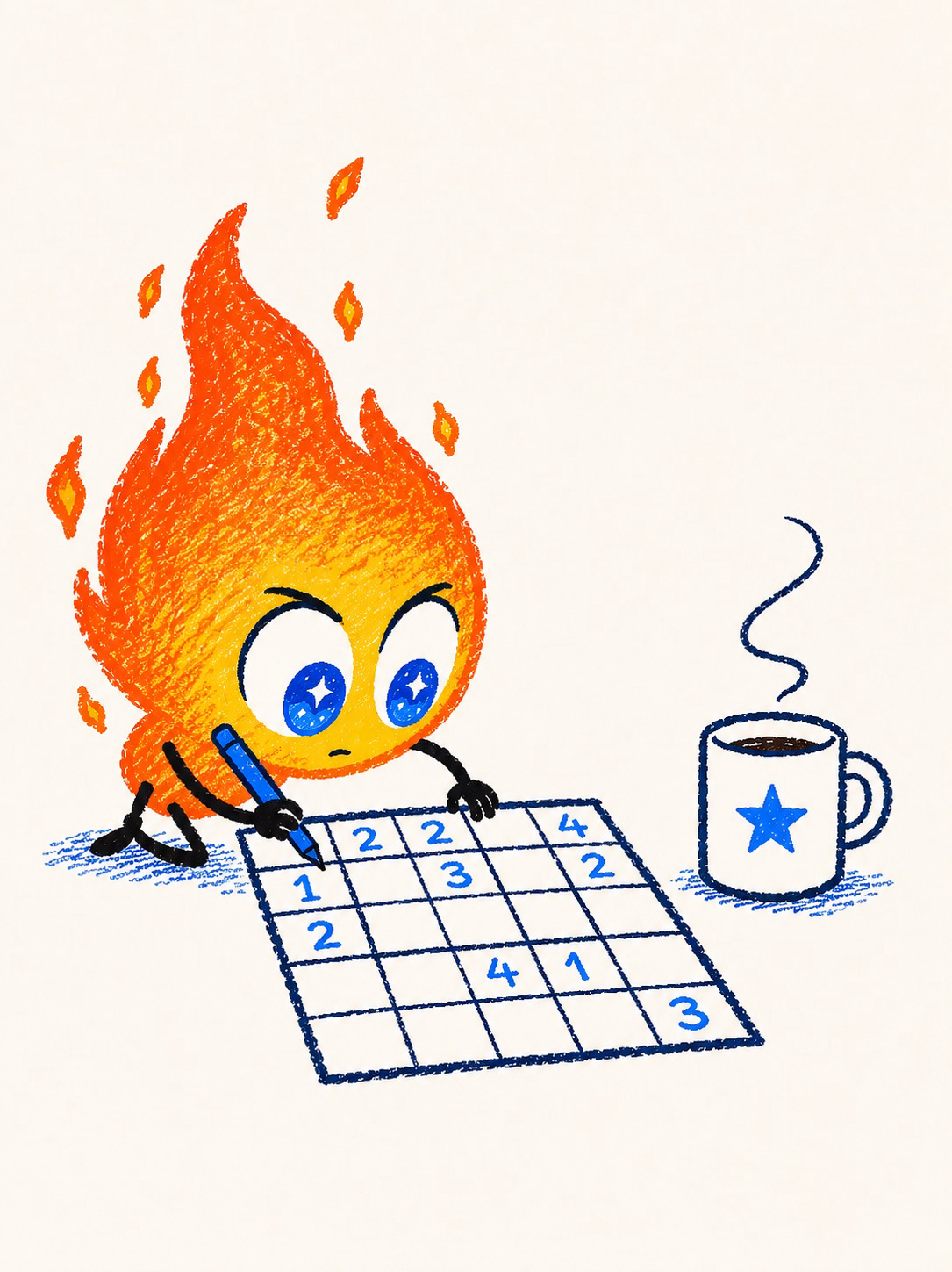

Today’s data
Until now, you’ve mostly worked with strings and lists. Many Advent puzzles instead describe a two-dimensional world: a map, maze, image, game board, or sensor grid.
Although the data is conceptually two-dimensional, it’s usually easiest to store it as a single list. You recover rows and columns with a little arithmetic.
The data
Download grid_temps.txt. Each line packs seven readings together: every two digits is one sensor’s temperature, always below zero, with a magnitude between 00 and 40:
30252832201503
22180520151011
27203022171819
19033231161011
24302230190908
The first row’s pairs, 30 25 28 32 20 15 03, become the readings -30, -25, -28, -32, -20, -15, -3.
Create the project file
Create work_with_grids.mojo, and unpack the digit pairs into a flat,
row-major list of temperatures:
    var log = Path("src/downloads/grid_temps.txt")
    var lines = log.read_text().splitlines()

    var rows = len(lines)
    var cols = lines[0].byte_length() / 2
    var data = List[Int]()

    for line in lines:
        for i in range(0, line.byte_length(), 2):
            var pair = line[byte = i : i + 2]
            data.append(-Int(String(pair)))
The list contains five rows of seven readings each.
Convert between indices and coordinates
The readings live in a single list, but puzzles think in rows and columns. You’ll constantly move between the two representations.
Add these helper functions in main() as nested items:
    def index_to_coord(index: Int) {imm} -> Tuple[Int, Int]:
        return (index / cols, index % cols)

    def get_coord_data(row: Int, col: Int) {imm} -> Int:
        return data[row * cols + col]
The first converts a list index into (row, col). The second converts a row and column back into a list index to retrieve the value.
Takeaways
{imm}gives the nested functions read-only access to values defined inmain(). Here it capturescolsanddataas immutable references.- The data stays in one linear list using row-major ordering.
- Division finds the row. Modulo finds the column.
- Returning coordinates as a tuple lets you unpack them naturally.
Print the grid
Before solving the puzzle, it’s helpful to see the data laid out as a grid. Add a place to remember which cells turn out to be cool spots:
var cool_indices: List[Tuple[Int, Int]] = []
Add a write_data() helper that loops over each row and column, formats
the values into aligned columns with ascii_rjust(), and marks any
coordinate already in cool_indices with *:
    # Write the data in a grid format
    def write_data() {imm data, imm cool_indices, imm}:
        var print_width = 4
        for row in range(rows):
            for idx in range(row * cols, (row + 1) * cols):
                var item = data[idx]
                var col = idx % cols
                print(t"{String(item).ascii_rjust(print_width)}", end="")
                if (row, col) in cool_indices:
                    print(t"*", end="")
                else:
                    print(t" ", end="")
            if row < rows - 1:
                print("")
        print()
Call it once to check the raw grid, before you’ve searched for anything:
write_data()
Since cool_indices starts out empty, nothing gets marked yet.
Takeaways
ascii_rjust()right-aligns values into fixed-width columns.- Nested loops naturally walk rows and columns.
- The same
write_data()you just wrote will show your results later. Calling it again after the search populatescool_indicesis the only thing that changes.
Compare neighboring cells
A single reading doesn’t tell you much. Is -30 cold? Compared to what? Is that a cool spot? How do you know? Do you pick a cut-off number?
The interesting part is how each reading compares with the temperatures
around it. For this puzzle, a point is considered a cool spot if most
of its neighbors are warmer. Remember that with negative readings,
warmer means closer to zero, so a plain > comparison still works.
Clarifying the search
You’ll need to define some puzzle arguments to limit your search and produce your results.
    var radius = 1  # how far to look
    var count = (radius * 2 + 1) ** 2 - 1  # how many neighbors?
    var half_count = count / 2  # half of the neighbors
A radius of one creates a 3×3 neighborhood. Excluding the center leaves eight neighboring cells.
Performing the search
Here’s the heart of your project. For each location, you examine the
square neighborhood centered on that spot. Every warmer neighbor
increments cooler. If more than half the neighbors are warmer, you’ve
found a cool spot.
    for index in range(len(data)):
        var row, col = index_to_coord(index)  # fetch the row and column
        var cooler = 0  # keeps a running comparison count
        var spot = get_coord_data(row=row, col=col)  # the current spot's value

        # Check boundaries for safe indexing
        if not (
            radius <= row < rows - radius and radius <= col < cols - radius
        ):
            continue

        for dRow in range(row - radius, row + radius + 1):
            for dCol in range(col - radius, col + radius + 1):
                if dRow == row and dCol == col:
                    continue  # current spot
                var neighbor = get_coord_data(row=dRow, col=dCol)
                if neighbor > spot:
                    cooler += 1

        if cooler > half_count:  # each spot has 8 neighbors
            print(t"Cool spot: ({row}, {col})")
The boundary check uses chained comparisons to make sure that at the current spot, there are at least radius values in each direction. This makes sure indexes in the following loop are safe.
Chained comparisons split pairwise: x < y <= z is equivalent to
x < y and y <= z. They’re a compact Mojo way to express related
checks.
Append the (row, col) tuple to cool_indices once you’ve confirmed a
cool spot:
        if cooler > half_count:  # each spot has 8 neighbors
            print(t"Cool spot: ({row}, {col})")
            cool_indices.append((row, col))
When you run the search, you’ll find five cool spots: (2, 2), (2, 3),
(2, 5), (3, 2), and (3, 3).
Takeaways
- The outer loop visits every cell.
- The inner loops visit each neighboring location.
- The current cell is skipped.
coolercounts warmer neighbors for one location.
Visualize the answer
Finding the answer is good. Seeing it is even better.
Call write_data() one more time, now that the search has filled in
cool_indices:
write_data()
Takeaways
- Store interesting coordinates separately instead of modifying the data.
- The same display routine works before and after the search.
Run the app
The highlighted grid makes it clear where the colder regions are:
 -30  -25  -28  -32  -20  -15   -3
 -22  -18   -5  -20  -15  -10  -11
 -27  -20  -30* -22* -17  -18* -19
 -19   -3  -32* -31* -16  -10  -11
 -24  -30  -22  -30  -19   -9   -8
The failed warming pad is immediately obvious.
Final code
Your complete work_with_grids.mojo:
from std.pathlib import Path


def main() raises:
    var log = Path("src/downloads/grid_temps.txt")
    var lines = log.read_text().splitlines()

    var rows = len(lines)
    var cols = lines[0].byte_length() / 2
    var data = List[Int]()

    for line in lines:
        for i in range(0, line.byte_length(), 2):
            var pair = line[byte = i : i + 2]
            data.append(-Int(String(pair)))

    def index_to_coord(index: Int) {imm} -> Tuple[Int, Int]:
        return (index / cols, index % cols)

    def get_coord_data(row: Int, col: Int) {imm} -> Int:
        return data[row * cols + col]


    var cool_indices: List[Tuple[Int, Int]] = []

    # Write the data in a grid format
    def write_data() {imm data, imm cool_indices, imm}:
        var print_width = 4
        for row in range(rows):
            for idx in range(row * cols, (row + 1) * cols):
                var item = data[idx]
                var col = idx % cols
                print(t"{String(item).ascii_rjust(print_width)}", end="")
                if (row, col) in cool_indices:
                    print(t"*", end="")
                else:
                    print(t" ", end="")
            if row < rows - 1:
                print("")
        print()


    write_data()

    var radius = 1  # how far to look
    var count = (radius * 2 + 1) ** 2 - 1  # how many neighbors?
    var half_count = count / 2  # half of the neighbors

    for index in range(len(data)):
        var row, col = index_to_coord(index)  # fetch the row and column
        var cooler = 0  # keeps a running comparison count
        var spot = get_coord_data(row=row, col=col)  # the current spot's value

        # Check boundaries for safe indexing
        if not (
            radius <= row < rows - radius and radius <= col < cols - radius
        ):
            continue

        for dRow in range(row - radius, row + radius + 1):
            for dCol in range(col - radius, col + radius + 1):
                if dRow == row and dCol == col:
                    continue  # current spot
                var neighbor = get_coord_data(row=dRow, col=dCol)
                if neighbor > spot:
                    cooler += 1

        if cooler > half_count:  # each spot has 8 neighbors
            print(t"Cool spot: ({row}, {col})")
            cool_indices.append((row, col))

    write_data()
Topics covered
Representing a grid in a linear array, row-major indexing, tuple unpacking, nested loops, coordinate arithmetic, chained comparisons, neighborhood searches, and simple visualization.
Reuse your code 🔥
By now, you’ve written code you shouldn’t have to write again. Pulling numbers from text, correcting readings, and summarizing values aren’t tied to one puzzle. They’re useful tools you can carry forward to the next one. Once a solution starts repeating itself, it’s a good candidate for a function or library.
In this chapter, you’ll move some of that working code into a reusable toolkit and call it from another program. You’ll build and link a Mojo library, define defaults that keep common calls simple, and combine small functions into a processing pipeline. The next time a puzzle needs the same machinery, you’ll already have it.


Create reusable libraries
By now you’ve pulled integers from text, corrected readings, and averaged them. You wrote each move inline. A function gives the move a name and a home, letting the next puzzle reuse it instead of retyping it.
Build a library
Create a folder called toolkit/.
In that folder, create __init__.mojo and add the extractor. There’s no
main() function, just the one extract_ints() function:
def extract_ints(text: String) raises -> List[Int]:
    var nums = List[Int]()
    var cur = String("")
    for i in range(text.byte_length()):
        var c = String(text[byte=i])
        if c >= "0" and c <= "9":
            cur += c
        elif cur:
            nums.append(Int(cur))
            cur = String("")
    if cur:
        nums.append(Int(cur))
    return nums^
Compile it with precompile. This builds toolkit.mojoc:
mojo precompile toolkit.mojo
Link a library
Now create test.mojo in your main folder, not inside toolkit:
from toolkit import extract_ints

def main():
    var s = "a 1 b 2 c 3"
    try:
        var list = extract_ints(s)
        print(list)
    except e:
        print(e)
Compile and run test.mojo:
mojo test.mojo toolkit.mojoc
Your app prints [1, 2, 3] using the function from your library.
Takeaways
- A library lets you write once and use often.
- The declarations in the library are your API contract.
extract_intspromises aList[Int]and hands ownership out with^.
Default arguments
An argument can carry a default, so callers skip it in the common case and override it when they need to. Station 3 reads high when the sun hits it midday, so correct readings taken in those hours. Add to your library:
def corrected(reading: Float64, hour: Int, offset: Float64 = 1.5) -> Float64:
    # station 3 bakes in solar loading between 10:00 and 14:00
    if 10 <= hour < 14:
        return reading - offset
    return reading
Call it from main() with the default, or name the argument to override it:
    print(t"noon, default: {corrected(24.5, 12)}")  # 23.0
    print(t"noon, bigger:  {corrected(24.5, 12, offset=2.0)}")  # 22.5
Takeaways
offset: Float64 = 1.5gives the argument a default. Callers that omit supplying their ownoffsetuse this as their offset value.- Name an argument at the call site (
offset=2.0) to set it explicitly and skip the guesswork about argument order. - A default keeps the common call short.
Compose functions
Small functions snap together. Add one that averages a list, then run readings through correction and into the average. In the library:
def mean_of(values: List[Float64]) -> Float64:
    var total = 0.0
    for v in values:
        total += v
    return total / Float64(len(values))
In main(), correct each reading, then summarize the corrected set:
    var raw: List[Float64] = [22.1, 24.5, 19.8]
    var hours = [9, 12, 16]
    var fixed = List[Float64]()
    for r, h in zip(raw, hours):
        fixed.append(corrected(r, h))
    print(t"corrected: {fixed}")  # [22.1, 23.0, 19.8]
    print(t"mean after correction: {round(mean_of(fixed), 2)}")  # 21.63
Takeaways
- Each function does one thing, so they read as a pipeline: parse, correct, summarize.
correctedruns per reading;mean_ofruns over the whole list. Small pieces, combined at the call site.
Final code
Your complete toolkit/__init__.mojo:
def extract_ints(text: String) raises -> List[Int]:
    var nums = List[Int]()
    var cur = String("")
    for i in range(text.byte_length()):
        var c = String(text[byte=i])
        if c >= "0" and c <= "9":
            cur += c
        elif cur:
            nums.append(Int(cur))
            cur = String("")
    if cur:
        nums.append(Int(cur))
    return nums^


def corrected(reading: Float64, hour: Int, offset: Float64 = 1.5) -> Float64:
    # station 3 bakes in solar loading between 10:00 and 14:00
    if 10 <= hour < 14:
        return reading - offset
    return reading


def mean_of(values: List[Float64]) -> Float64:
    var total = 0.0
    for v in values:
        total += v
    return total / Float64(len(values))
and:
from toolkit import extract_ints, corrected, mean_of


def main() raises:
    print(t"reused: {extract_ints('readings: 3, 5, 8')}")  # [3, 5, 8]

    print(t"noon, default: {corrected(24.5, 12)}")  # 23.0
    print(t"noon, bigger:  {corrected(24.5, 12, offset=2.0)}")  # 22.5

    var raw: List[Float64] = [22.1, 24.5, 19.8]
    var hours = [9, 12, 16]
    var fixed = List[Float64]()
    for r, h in zip(raw, hours):
        fixed.append(corrected(r, h))
    print(t"corrected: {fixed}")  # [22.1, 23.0, 19.8]
    print(t"mean after correction: {round(mean_of(fixed), 2)}")  # 21.63
Topics covered
Building a library and linking it, naming a move as a function, return-type
contracts, returning a List with ^, default arguments, keyword
arguments at the call site, and composing small functions into a pipeline.
Call Python and C libraries 🔥
Your puzzle is solved, but one question hangs over the season: is the Pole actually warming, or is that just the midday sun on station 3? Here’s what you need: hand your readings to Python’s numpy to fit a trend, and to a C library to crunch them at native speed. Mojo links to both.
Mojo solves the whole season on its own. This page is about reach: when a library you already trust does exactly what you want, you call it instead of reimplementing it.


The question
Station 3 is the one with the sun problem: readings taken between 10:00 and 14:00 run warm because the sensor bakes in direct light. Pull station 3’s entries back out of station_reports.txt and correct them the same way you did on the toolkit page, so the trend you fit measures climate, not sunshine on a roof.
Create warming.mojo:
    var log = Path("src/downloads/station_reports.txt")
    var lines = log.read_text().splitlines()

    var days: List[Int64] = []
    var readings: List[Float64] = []

    for line in lines:
        # ['Station 3', 'Day 0', '06:00', '-22.3C', 'Clear']
        var fields = line.split(", ")
        if String(fields[0]) != "Station 3":
            continue

        try:
            var dayString = String(fields[1].split(" ")[1])
            var day = Int64(atol(dayString))
            days.append(day)

            var hourString = String(fields[2].split(":")[0])
            var temperatureString = String(fields[3].removesuffix("C"))
            var temperature = Float64(atof(temperatureString))

            # Station 3 bakes in solar loading between 10:00 and 14:00
            if Float64(10) <= Float64(hourString) < Float64(14):
                temperature -= 1.5

            readings.append(temperature)

        except e:
            print(t"Unable to convert text to data: {e}")

    print("Warming report")
    print(t"Readings:    {len(readings)} (Station 3 only)")  # Four readings
Day 1’s only station 3 reading lands at noon, right in the sun-bias window,
so it comes in at a suspiciously warm -18.5C. The correction knocks it back
down to -20.0, right in line with the rest of the season. Skip the
correction and the trend still looks like it’s warming, just by a slightly
inflated amount.
Takeaways
-
Type the
daysandreadingsdeclarations explicitly. -
Chained comparisons evaluate as pairwise comparisons joined by
and. This expression:10 <= Float64(hour_string) < 14is equivalent to:
10 <= Float64(hour_string) and Float64(hour_string) < 14
Call Python: fit a trend with numpy
numpy fits a line in one call. Its polyfit function returns the slope and
intercept. The sign of the slope answers the question: “Is it warming?”
Add imports at the top:
from std.python import Python
from std.python.numpy import copy_to_numpy_array, from_numpy_array
Then, in main():
    # Converts True/False to "Yes"/"No"
    var truth_string = lambda (b: Bool) -> String: ("Yes" if b else "No")

    try:
        var np = Python.import_module("numpy")
        var xs = copy_to_numpy_array(days)
        var ys = copy_to_numpy_array(readings)

        var fit = np.polyfit(xs, ys, 1)  # [slope, intercept]
        var slope = Float64(py=fit[0])  # degrees per day

        print(t"Trend:       {round(slope, 2)} C/day")  # ~1.91, rising
        print(t"Warming?:    {truth_string(slope > 0)}")  # Yes
    except:
        print("numpy not found. Add it with `pixi add numpy`.")
Takeaways
Python.import_module()loads any module the active Python can see. It raises if the module is missing, so usetry/exceptto handle the error.numpyisn’t part of Mojo. Add it to your project withpixi add numpy. Python standard library modules such asreandmathneed no separate install.np.array()doesn’t accept a MojoListdirectly. Build aPython.list()and append the values, crossing the Python boundary once instead of once per value.slopeis aPythonObject. Compare it in Python space (slope > 0) instead of converting it to a MojoFloat64.- The exact slope includes floating-point noise. Its sign is all you need to answer whether the readings are warming.
Call C: crunch with BLAS
BLAS is a widely used C numeric library. Load it and call a function by name to reduce the array by summing absolute values.
Add the FFI imports at the top:
from std.ffi import OwnedDLHandle, c_int, c_double
Then, in main():
    try:
        var blas = OwnedDLHandle(
            "/System/Library/Frameworks/Accelerate.framework/Accelerate"
        )

        # Keep readings alive
        comptime origin = origin_of(readings)

        # cblas_dasum(count, X, stride) sums |X| in one C call
        var dasum = blas.borrow().get_function[
            def(
                c_int, Pointer[c_double, origin], c_int
            ) thin abi("C") -> c_double
        ]("cblas_dasum")

        var total = dasum(c_int(len(readings)), readings.unsafe_ptr(), c_int(1))
        var mean = total / Float64(len(readings))

        # Every Station 3 reading is below zero, so the magnitude sum
        # negates back to the real mean
        print(t"season mean: {round(-mean, 2)}")  # -20.55
    except:
        print("BLAS not found.")
Takeaways
OwnedDLHandle(path)opens a shared library. It raises if the library is missing, so use the sametry/exceptprobe as for NumPy.get_function()specifies the C signature.thin abi("C")declares a plain C function, whilec_intandc_doublematch C’s integer and double types.c_doubleis an alias forFloat64, so the readings need no conversion.readings.unsafe_ptr()gives C a pointer to the list’s storage. Get the pointer immediately before the call. Growing the list can move its storage and invalidate the pointer.cblas_dasumsums absolute values. Because every station 3 reading is negative, negate the result before calculating the mean.- macOS provides BLAS through the Accelerate framework used here. On Linux,
use
libopenblas.soorlibblas.so.3, which usually requires a separate installation.
Final code
Your complete warming.mojo:
from std.pathlib import Path

from std.python import Python
from std.python.numpy import copy_to_numpy_array, from_numpy_array


from std.ffi import OwnedDLHandle, c_int, c_double


def main() raises:
    var log = Path("src/downloads/station_reports.txt")
    var lines = log.read_text().splitlines()

    var days: List[Int64] = []
    var readings: List[Float64] = []

    for line in lines:
        # ['Station 3', 'Day 0', '06:00', '-22.3C', 'Clear']
        var fields = line.split(", ")
        if String(fields[0]) != "Station 3":
            continue

        try:
            var dayString = String(fields[1].split(" ")[1])
            var day = Int64(atol(dayString))
            days.append(day)

            var hourString = String(fields[2].split(":")[0])
            var temperatureString = String(fields[3].removesuffix("C"))
            var temperature = Float64(atof(temperatureString))

            # Station 3 bakes in solar loading between 10:00 and 14:00
            if Float64(10) <= Float64(hourString) < Float64(14):
                temperature -= 1.5

            readings.append(temperature)

        except e:
            print(t"Unable to convert text to data: {e}")

    print("Warming report")
    print(t"Readings:    {len(readings)} (Station 3 only)")  # Four readings

    # Converts True/False to "Yes"/"No"
    var truth_string = lambda (b: Bool) -> String: ("Yes" if b else "No")

    try:
        var np = Python.import_module("numpy")
        var xs = copy_to_numpy_array(days)
        var ys = copy_to_numpy_array(readings)

        var fit = np.polyfit(xs, ys, 1)  # [slope, intercept]
        var slope = Float64(py=fit[0])  # degrees per day

        print(t"Trend:       {round(slope, 2)} C/day")  # ~1.91, rising
        print(t"Warming?:    {truth_string(slope > 0)}")  # Yes
    except:
        print("numpy not found. Add it with `pixi add numpy`.")

    try:
        var blas = OwnedDLHandle(
            "/System/Library/Frameworks/Accelerate.framework/Accelerate"
        )

        # Keep readings alive
        comptime origin = origin_of(readings)

        # cblas_dasum(count, X, stride) sums |X| in one C call
        var dasum = blas.borrow().get_function[
            def(
                c_int, Pointer[c_double, origin], c_int
            ) thin abi("C") -> c_double
        ]("cblas_dasum")

        var total = dasum(c_int(len(readings)), readings.unsafe_ptr(), c_int(1))
        var mean = total / Float64(len(readings))

        # Every Station 3 reading is below zero, so the magnitude sum
        # negates back to the real mean
        print(t"season mean: {round(-mean, 2)}")  # -20.55
    except:
        print("BLAS not found.")
Topics covered
Importing a Python module, gating an import with try/except, building a
Python.list to cross the boundary, working with a PythonObject, loading a C
library with OwnedDLHandle, naming a C signature for get_function, the
c_int and c_double aliases, and passing an array to C with unsafe_ptr.
You started the season printing one line and finished it linking Mojo to Python
and C to answer a real question. The whole toolkit, from a first print to the
outside world, is yours now. Go solve some puzzles.
Learn more
There’s so much more to learn and explore in Mojo. Here are links to explore what’s next:
-
🔥 Visit our Mojo language manual.
Resource for learning -
🔥 In Mojo Quest, you’ll learn Mojo by solving code problems right in the browser.
Get started -
🔥 Check out our Mojo cheat sheets. Each preview matches your light or dark theme. Click a preview to open it full size, or download a PNG or PDF to keep.
Take a look
Solved one of this year’s puzzles in Mojo?
Please join us on the Mojo discord in the #advent-of-code channel. Drop a GitHub link to your solution so we can celebrate your achievement!